Updated 19 Nov 2026 What changed
- First published, from our own first hour of play on PS5 (launch night, 19 Nov 2026). Every prompt quoted here was on screen in our footage.
On this page
The biggest change for GTA 5 players: GTA 6 uses L3 to run and sprint by default. You click the left stick instead of tapping Cross. The game tells you this on its very first setup screen and says you can change it at any time. Everything below comes from our own first hour of play on PS5 on launch night. Every prompt is quoted as it appeared on screen. There are no story spoilers.
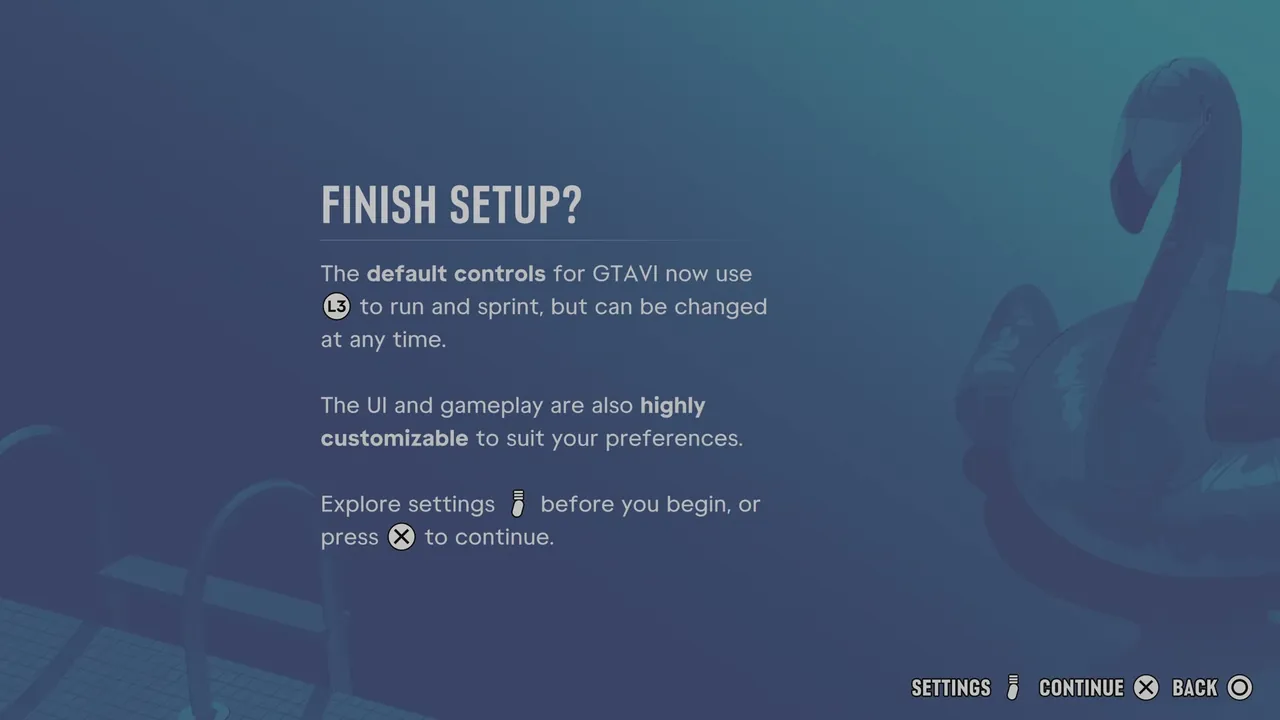
Our PS5, first boot: the "Finish setup?" screen. Screenshot: Six Star Intel.
GTA 6 controls at a glance (PS5)
| Action | PS5 button | Where we saw it |
|---|---|---|
| Run and sprint | L3 (click left stick) | First-boot setup screen |
| Equip or holster gun | Press L1 | On-foot prompt |
| Weapon wheel | Hold L1 | Weapon wheel |
| Switch Weapons / Items tab | R1 (in the wheel) | Weapon wheel |
| Heal | Hold L1 + press Square | Weapon wheel |
| Take cover | R1 | On-foot prompt |
| Show HUD and current objective | Press D-pad | Driving prompt |
| Radio and vehicle controls | Hold D-pad | Driving prompt |
| Focus (helps locate an objective) | L3 + R3 | Boat prompt |
| Boat: sharper turn | Hold Cross while steering | Boat prompt |
| Plane: accelerate / take off | R2 / left stick | Seaplane prompt |
| Plane: rudder (in the air or on water) | Hold Square or Circle | Seaplane prompt |
| Plane: slow down to land on water | Hold L2 | Seaplane prompt |
We only list buttons we actually saw on screen. Anything not in the table (for example the phone or photo mode) we haven't checked yet.
Sprint is now L3
The "Finish setup?" screen says: "The default controls for GTAVI now use L3 to run and sprint, but can be changed at any time. The UI and gameplay are also highly customizable to suit your preferences." If you'd rather keep a GTA 5-style setup, press the Settings button on that screen before you start, or change it later in the Settings menu.
Set these up before you start
Before the game begins you get a short setup run. In ours it offered:
- Navigation Experience: "Minimap & Compass (Dynamic)" shows the compass and minimap "dynamically or on demand". "Minimap Always On" keeps it up all the time. If you like the GTA 5 look, pick Always On.
- UI Text Size: Medium or Large (Large makes some text bigger).
- Subtitles: size options, with more in the Settings menu.
- HDR Calibration (if your TV is in HDR): Max Brightness, Black Levels and Paper White. Ours showed 600, 50 and 50 by default. Adjust until the logo is "barely visible", as the screen says.
Combat: cover, holster and non-lethal shots
- R1 takes cover, the same button GTA 5 used on PlayStation.
- Press L1 to quickly equip or holster your gun.
- The game also tells you that "Incapacitating targets with non-lethal shots will take them out without killing them." So where you aim matters, not just whether you hit.
The weapon wheel and healing
Hold L1 for the wheel. It now has two tabs, Weapons and Items, and you switch between them with R1. Each weapon shows stat bars. Our starting pistol, the Girardi ES9 ("Military Pistol", a sidearm), showed Damage 4.2, Accuracy 5.2, Handling 8.4 and Range 4.4. Binoculars sat in the wheel under Equipment.
To heal, hold L1 and press Square. Your healing items sit in the bottom-left corner of the wheel.
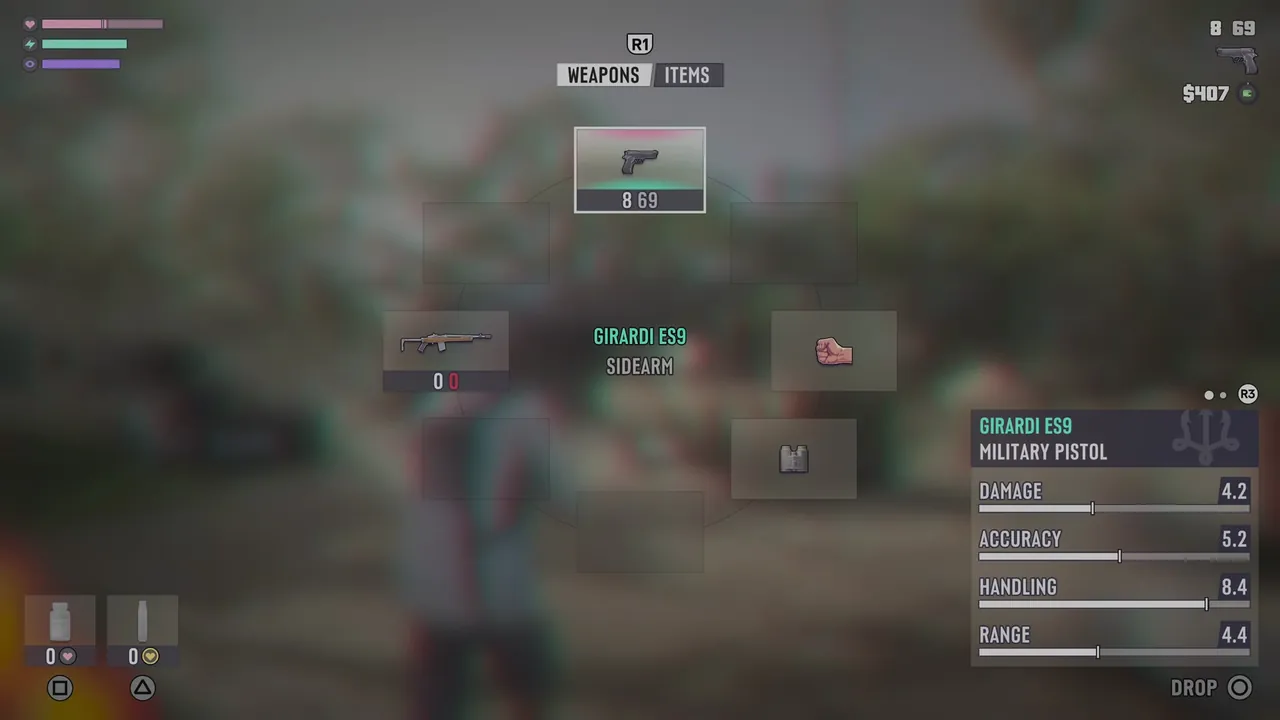
The weapon wheel, with the Weapons / Items tabs at the top and weapon stats bottom-right. Screenshot: Six Star Intel.
The HUD hides itself
With the default navigation setting, much of the HUD stays out of the way. Press the D-pad to reveal the HUD and view your current objective. When driving, hold the D-pad for the radio and vehicle controls. Directions also show as turn-by-turn instructions on the minimap (for example "Turn Right 249 ft").
Boat and seaplane controls
You get your hands on a boat and a seaplane early on. The prompts we saw:
- Boat: hold Cross while steering for a sharper turn.
- Seaplane: R2 to accelerate, left stick to take off, hold Square or Circle for the rudder "while flying or on the water", and hold L2 to slow down as you descend to land on water.
More on both, plus your first car, in our first vehicles guide.
What we haven't checked yet
- Xbox buttons. We played on PS5. We'll add the Xbox prompts once we've seen them.
- The phone, photo mode, wanted-level and police controls. We didn't use them in our first hour, so they're not here yet.
- The full Settings menu. We'll cover the best settings once we've been through it properly.
For more first-hour help, read our GTA 6 beginner tips. For where everything is, see our interactive map.
Frequently asked questions
How do you sprint in GTA 6?
By default you click L3 (the left stick) to run and sprint on PS5. The game's own setup screen says the default controls 'now use L3 to run and sprint, but can be changed at any time', so you can switch it in Settings.
How do you open the weapon wheel in GTA 6?
Hold L1 on PS5. A tap of L1 quickly equips or holsters your gun. In the wheel, R1 switches between the Weapons and Items tabs.
How do you heal in GTA 6?
Hold L1 to open the wheel and press Square to heal. Your healing items show in the bottom-left corner of the wheel.
Where has the GTA 6 HUD gone?
By default the HUD hides itself. Press the D-pad to bring it back and see your current objective. On first boot you can pick 'Minimap Always On' if you want the minimap to stay up.
What are the Xbox controls for GTA 6?
We played on PS5, so this page uses PlayStation buttons. We haven't checked the Xbox prompts yet and will add them when we have.
Email alerts
Get told the moment it's official
No spam and no daily digest. Just one email when something on your list is confirmed.
Sources
- Rockstar Games, GTA VI official site https://www.rockstargames.com/VI
- Rockstar Support, platforms, editions and versions https://support.rockstargames.com/articles/4QfG4FmZCf5W1gS8jy4UVT/grand-theft-auto-vi-platform-editions-and-versions
Facts checked on 19 November 2026. Spotted something out of date? Tell us.